
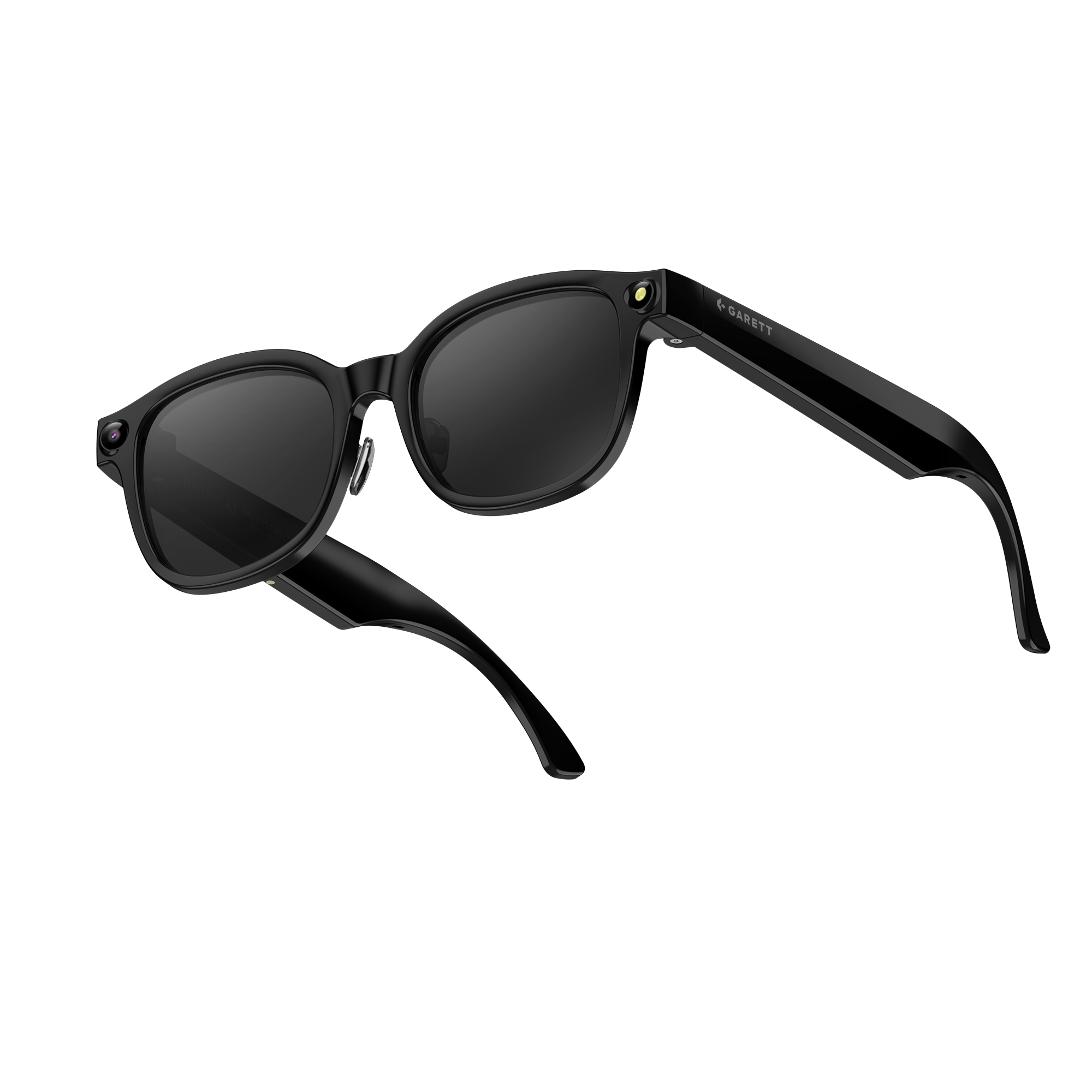


Garett Horizon AI

Dedicated app

Garett View Icon

Garett View

Download the app Garett View

Quick Start Guide

1

Charge the glasses

Before using the device for the first time, charge it using the included USB-C charging cable. It is recommended that you charge the glasses for about 60 minutes before turning them on for the first time.

Charging icon

2

Download the app

Install the dedicated Garett View app from the Google Play Store or the App Store on your smartphone.
3

Turn on the glasses

Press and hold the button on the right temple for about 3 seconds to turn on the glasses.
Turn on the glasses icon

4

Connect the glasses to the app

Launch the Garett View app and connect the glasses according to the instructions displayed in the app. Make sure Bluetooth is turned on on your phone.
Connect the glasses icon

5

Read the full user manual

For complete information about the product, its features, setup, and safe use, read the full user manual.

User manual icon

All done! That’s it.

You can now use the glasses’ features, such as taking photos, recording videos, using the AI assistant, AI chat, conversation translation, audio recording, transcription of recordings, creating AI notes, and importing photos and recordings into the app.

User manual

FAQ

1. The glasses won’t turn on
  1. Connect the glasses to charge using the USB-C magnetic charging cable included in the set.
  2. Use a working, certified wall charger with a power output between 2.5 W and 5 W.
  3. Ensure that the magnetic connector correctly attaches to the charging port.
  4. Leave the glasses connected for at least 60 minutes. Before first use or after complete discharge, charging for about 2 hours is recommended.
  5. If the battery is completely drained, the LED indicator may take up to several minutes to respond.
  6. After charging, press and hold the button on the right temple for about 3 seconds.
2. The glasses aren’t charging or the LED indicator is not flashing
  1. Disconnect the cable and reattach the magnetic connector to the charging port.
  2. Make sure the charging contacts are clean and completely dry.
  3. Test using a different USB port or a certified 2.5 W to 5 W charger.
  4. Do not use damaged cables, power adapters, or dirty/moist contacts.
  5. If the glasses were exposed to moisture, do not connect them to power until they are completely dry.

Note: Proper connection should cause the LED indicator to flash. If the device or cable is damaged, discontinue use.

3. The Garett View app does not detect the glasses
  1. Check if your phone meets the requirements: Android 10.0 or later or iOS 15.0 or later.
  2. Install or update the Garett View app from Google Play or the App Store.
  3. Turn on the glasses by holding the button on the right temple for about 3 seconds.
  4. Turn on Bluetooth on your phone and launch the Garett View app.
  5. Grant the required app permissions, especially access to Bluetooth and media files.
  6. Pair the glasses following the in-app instructions.
  7. If the device was previously added, use the Remove device option in the app, restart both the glasses and your phone, and then set up the device again.
4. The glasses are connected, but photos, videos, or audio recordings cannot be imported
  1. Ensure the glasses are turned on and connected to the Garett View app.
  2. Enable both Bluetooth and Wi-Fi on your phone. The Wi-Fi connection is used to transfer photos and recordings.
  3. Grant the app permissions to access photos, videos, files, and nearby devices.
  4. Open the Home screen in the app. The Import button should appear automatically upon detecting new media stored on the glasses.
  5. Keep the glasses near the phone and do not close the app during transfer.
  6. If the Import button still does not appear, take a new photo, reopen the app, and check the connection.
  7. If necessary, remove the glasses from the app, pair them again, and check for software updates.
5. The AI Assistant or object recognition is not working
  1. Check if your phone has an active and stable internet connection.
  2. Ensure the glasses are connected to the Garett View app.
  3. Press the button on the left temple once to launch the AI feature.
  4. In the app, check the speech recognition language and AI assistant settings.
  5. Speak clearly and do not cover the microphones located on the frame.
  6. Go to Settings → Software and install any available device updates.
  7. If the issue persists, restart both the glasses and the app.

Note: AI features require an active internet connection and a Bluetooth connection with the phone.

6. Voice Wake-up for the assistant is not working
  1. Open the Garett View app and go to device settings.
  2. In the Other section, enable the Voice Wake-up feature.
  3. Check if the correct speech recognition language is selected.
  4. Ensure the glasses are connected to the app and your phone has internet access.
  5. Speak the command clearly in as quiet an environment as possible.
  6. If the feature still does not respond, launch AI manually by pressing the button on the left temple once.

Note: Enabling Voice Wake-up may shorten battery life.

7. Conversation translation is not working or the translated response cannot be heard
  1. Check the connection between the glasses and the app, as well as the phone’s internet access.
  2. Select the correct source and target languages in the app.
  3. In Conversation Translation mode, the person wearing the glasses speaks naturally, and the translation appears on the caller’s phone screen.
  4. To respond, the caller must hold down the microphone icon at the bottom of the phone screen and speak their message.
  5. Increase the volume by swiping forward on the touch panel on the right temple.
  6. Verify that the chosen languages are available for the feature and that the app has microphone access.
8. Unable to take a photo, record video, or record audio

Check if you are using the correct button and controls:

  • Photo: Press the button on the right temple once.
  • Video: Press and hold the button on the right temple for about 3 seconds to start, then press it once to stop recording.
  • Audio recording: Press the button on the left temple twice to start, then press it once to stop recording.

Note: If the function still doesn’t work, check available memory space, import existing media to the app, and delete unneeded files from the device. Also make sure the camera lens and microphones are not obstructed.

9. No sound for music, phone calls, or assistant responses
  1. Ensure the glasses are connected to your phone via Bluetooth.
  2. Check the volume level on your phone.
  3. Increase volume by swiping forward on the touch panel on the right temple.
  4. Check on your phone if the glasses are selected as the active output device for media and calls.
  5. Double-tap the touch panel to resume music playback.
  6. Restart Bluetooth, the glasses, and the app if the connection is active but audio is still not playing.
10. The touch panel is unresponsive or gestures trigger the wrong action
  1. The touch control is located on the right temple. Make sure you are touching the correct area.
  2. Clean the panel with a soft, dry cloth and ensure your hands are dry.
  3. Perform gestures distinctly: swipe forward to increase volume, swipe backward to decrease volume, double-tap to play/pause, and triple-tap to skip to the next track.
  4. For phone calls, double-tap to answer, and press and hold the panel to reject or end a call.
  5. If the panel remains unresponsive, restart the glasses or perform a reset using the buttons.
11. The battery drains too quickly

Fully charge the glasses. Actual battery life depends on how heavily the camera, video recording, AI features, translation, Bluetooth calling, music playback, and volume are used.

To extend operating time:

  • Turn off Voice Wake-up when not needed.
  • Limit long video recordings and frequent AI interactions.
  • Reduce the volume level.
  • Turn off the glasses when not in use.

Note: Declared runtime is up to 40 minutes of continuous video recording, up to 10 hours of music playback, and up to 5 days on standby.

12. Device memory is full or new files aren’t saving
  1. Connect the glasses to the Garett View app.
  2. On the Home screen, select Import and copy photos, videos, and audio recordings to your phone.
  3. Verify in the app that all files were properly saved.
  4. Delete unneeded files from the glasses’ memory only after securing your backup.
  5. If needed, perform a factory reset — keep in mind this erases all stored data on the device.

Note: The glasses feature 32 GB of built-in storage, which holds approximately 10,000 photos or 4–6 hours of video. Available space may be slightly less due to system software.

13. What app is required to operate the glasses?

The Garett View app, available on Google Play and the App Store, is used to operate the Garett Horizon AI. The app allows you to configure the device, use AI and translation features, import media, manage recordings, and update the software.

14. Which phones are compatible with the glasses?

The glasses are compatible with smartphones running Android 10.0 or later and iOS 15.0 or later. The phone must support Bluetooth, Wi-Fi, and the installation of the Garett View app.

15. Can the glasses work without a phone?

Once configured, basic actions such as taking a photo, recording a video, or capturing audio can be triggered using the buttons on the glasses. However, a phone with the Garett View app is required for full functionality, including AI features, translations, file imports, settings, and updates.

16. Is an internet connection required to use AI features?

Yes. AI features, conversation translation, recording transcription, and summary generation may require an active internet connection on your phone, paired glasses, and proper app permissions.

17. How do I turn the glasses on and off?

Press and hold the button on the right temple for about 3 seconds. Use the same method to turn the device on or off.

18. How do I take a photo?

Press the button on the right temple once. The photo will be saved to the glasses’ internal memory and can later be imported into the Garett View app.

19. How do I start and stop video recording?

To start recording, press and hold the button on the right temple for about 3 seconds. To stop recording, press the same button once.

20. How do I record audio?

Press the button on the left temple twice to start recording. To stop recording, press the same button once.

21. How do I launch the AI assistant?

Press the button on the left temple once. The assistant can also be activated by voice once the Voice Wake-up feature is enabled in the Garett View app.

22. What AI features do the glasses offer?

The device features voice Q&A mode, object recognition, AI chat with conversation history, AI note creation, recording transcription, and audio summary generation.

23. How does conversation translation work?

After selecting the languages in the app, the person wearing the glasses speaks naturally, and the translation appears on the caller’s phone screen. The caller holds down the microphone icon on the phone and speaks a response, which is translated and played through the glasses.

24. Do the glasses and app support the Polish language?

Yes. Polish is supported in the app, for conversation translation, and in AI Q&A features. The list of supported translation languages is broader than the app interface languages – it can be found in the technical specifications on the product page.

25. What are the camera specifications?

The glasses feature an 8 MP Sony camera with optical image stabilization. Photos have a resolution of up to 3264 × 2448 px, and videos are recorded in Full HD 1920 × 1080 px at 30 fps.

26. How much storage capacity do the glasses have?

The device has 32 GB of built-in memory. According to specifications, this holds approximately 10,000 photos or about 4–6 hours of video recordings. Part of the memory is occupied by the device’s system software.

27. Do the glasses support a memory card?

No. Files are stored in the 32 GB built-in memory and can be imported to your phone using the Garett View app.

28. How do I transfer photos and videos to my phone?

After connecting the glasses to the app, open the Home screen. When the app detects new files, it will automatically display an Import button. Transferred photos and videos can be found in the Gallery section.

29. How do I control music and volume?

Swipe forward on the touch panel on the right temple to increase the volume, or swipe backward to decrease it. Double-tapping starts or pauses playback, and triple-tapping skips to the next track.

30. Can I make phone calls using the glasses?

Yes. The glasses support Bluetooth calling. Double-tapping the panel on the right temple answers a call, while pressing and holding the panel rejects or ends the call.

31. What is an open-ear design?

Audio is played through speakers built into the temples without covering the ear canals. This allows the user to listen to music and calls while staying aware of ambient surround sounds.

32. How long does the battery last?

The battery capacity is 280 mAh. The declared operating time is up to 40 minutes of continuous video recording, up to 10 hours of music playback, and up to 5 days on standby. Actual runtime depends on usage and volume levels.

33. How long does it take to charge?

A full charge takes about 2 hours before first use. If the battery is completely drained, the LED indicator might take several minutes to turn on.

34. Are the glasses waterproof?

The glasses have an IP66 rating, but submerging the device in water, using it in high-humidity conditions, and charging wet glasses are strictly forbidden. The charging port is not waterproof. The device should be treated as resistant to accidental water contact, but it is not intended for swimming, bathing, or submersion.

35. What lenses are included in the set?

The set includes sunglass lenses and interchangeable clear non-prescription lenses (zero-diopter).

36. Do the glasses have a SIM card or built-in mobile data?

No. The glasses communicate with your phone via Bluetooth, Wi-Fi, and the Garett View app.

37. What are AI Notes?

This is a section of the app where notes created using the AI assistant are stored. A note can be created via voice command or based on a taken photo to save important information for later.

38. What is the One Click Video feature?

It is a tool in the app designed to automatically generate short videos from photos and recordings saved in the app. Users can apply templates, filters, and background music.

39. Do the glasses automatically turn off when removed?

When the Wear Detection feature is enabled, the glasses automatically enter sleep mode after being taken off.

40. What gets erased during a factory reset?

A factory reset via the app removes all data saved on the glasses and restores default device settings. Make sure to import important photos, videos, and audio recordings to your phone before performing a reset.

Safety and Compliance

Warranty card

Contact

Service for Poland and other countries

(except the Czech Republic and Slovakia)

GARETT Sp. z o.o.
ul. Sandomierska 209
25-330 Kielce, Polska

✉️ [email protected]

Hotline in Polish and English

📞 +48 41 252 75 10
🕒We work from 08:00 to 16:00

Service for the Czech Republic and Slovakia

RMA s.r.o. Service Centre
K Ochozi 761
59301 Bystřice nad Pernštejnem

✉️ [email protected]

Hotline in Czech and Slovak

📞 +420 603 573 592
🕒 We work from 08:00 to 16:00

This website uses cookies to ensure you get the best experience on our website.